Setup
Guided permission setup
Orbit opens the right macOS panes, anchors a quiet guide beside System Settings, and keeps keyboard and VoiceOver fallbacks available.
1.Grant macOS permissions
Orbit needs three permissions to work. All are requested at first launch and tied to specific, visible behavior.
Microphone
Uses the native macOS prompt for push-to-talk input.
Accessibility
Provides a draggable Orbit app tile plus a Finder fallback.
Screen Recording
Combines the app-tile guide with a real Screen Content capture probe.
Drag only the Orbit tile; the guide stays anchored and follows System Settings across displays. Reveal Orbit in Finder and Open Settings also work without dragging.
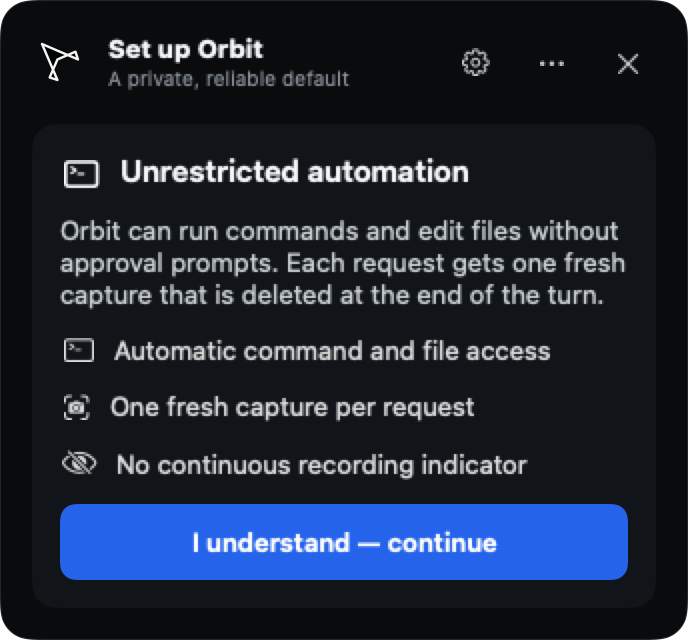
2.Review unrestricted automation
Orbit explains once that Codex can run commands and edit files with automatic approvals. This is a read-only product contract, not a toggle. Every request also requires one fresh screen capture, which is deleted when the turn ends.
3.Connect your ChatGPT account
Orbit uses your existing ChatGPT subscription to power the AI. Under the hood, it launches a bundled Codex runtime and checks for your auth.
- Already logged into ChatGPT? Orbit detects it and skips straight to voice setup.
- First time? Orbit opens a quick ChatGPT login flow and brings you back once connected.
4.Choose your voice mode
Voice input and narration are connected in one clear settings area. Local is the default; Cloud is always an explicit selection.
Local Voice
Requires Apple on-device recognition. For narration, Orbit selects the exact Siri Natural Nora / Voice 4 identifier used by Shortcuts and verifies that its installed macOS speech asset is available. If that probe fails, Orbit identifies and uses the best compatible Apple fallback. Voice 4 streams locally without creating an Orbit narration file.
Cloud Voice
Optional OpenAI transcription and AI-generated speech. Audio is sent to OpenAI in this mode; Orbit shows the required disclosure and keeps your API key in macOS Keychain.
5.Choose connected Codex settings
Orbit lists only models, reasoning levels, and service tiers returned by Codex for your account. Changing model, effort, or tier applies to the next turn without throwing away the warm Codex thread. The optional Agent Folder is separate: changing working context starts a new thread and does not restrict filesystem access.
6.Take the tour
Orbit finishes setup with a short intro: the wake shortcut, how screen context works, and how the cursor can fly to what matters on screen. Takes about 30 seconds, then Orbit disappears into your menu bar until you need it.
7.What Orbit can do once connected
Once connected, Orbit becomes a full desktop agent:
- Use your existing browser session or deterministic browser automation for web work
- Run commands and read or edit files without per-operation approval prompts
- Create documents, presentations, spreadsheets, and PDFs
- Use one fresh current-screen capture to explain software interfaces
- Point directly to buttons, controls, and UI elements